Cisco AnyConnect Review
Download and setup notes for Cisco AnyConnect. Useful links are listed below.
Download starts through this site’s download flow (operator MySoft package when uploaded).
Cisco AnyConnect DownloadFree for PC · site download
Overview
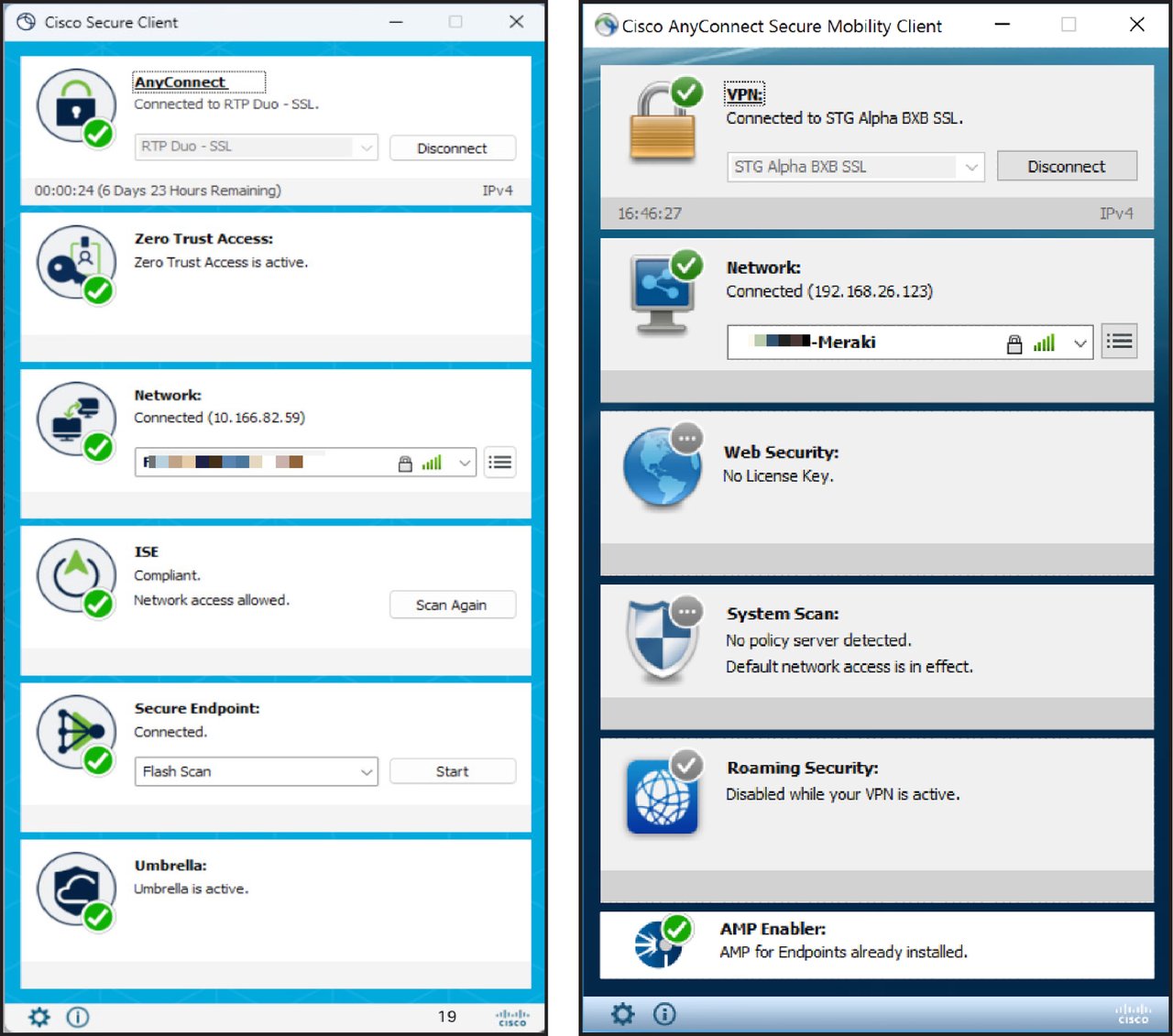
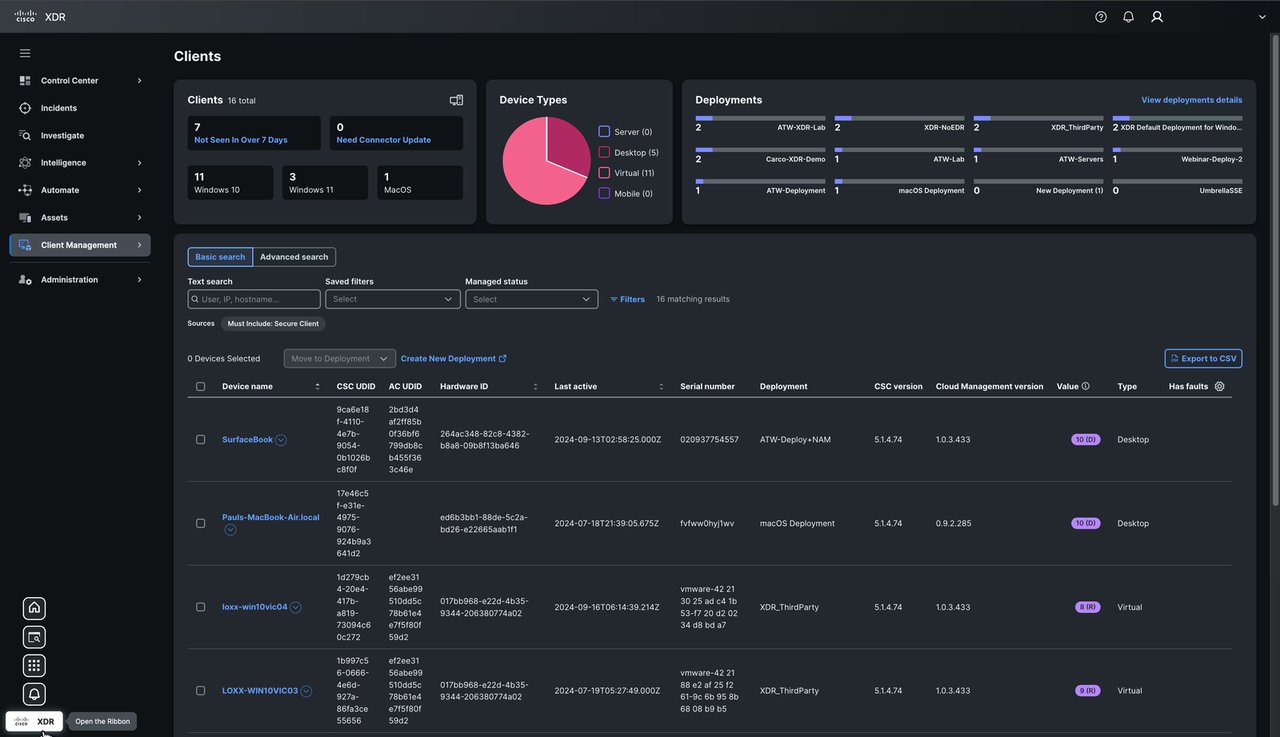
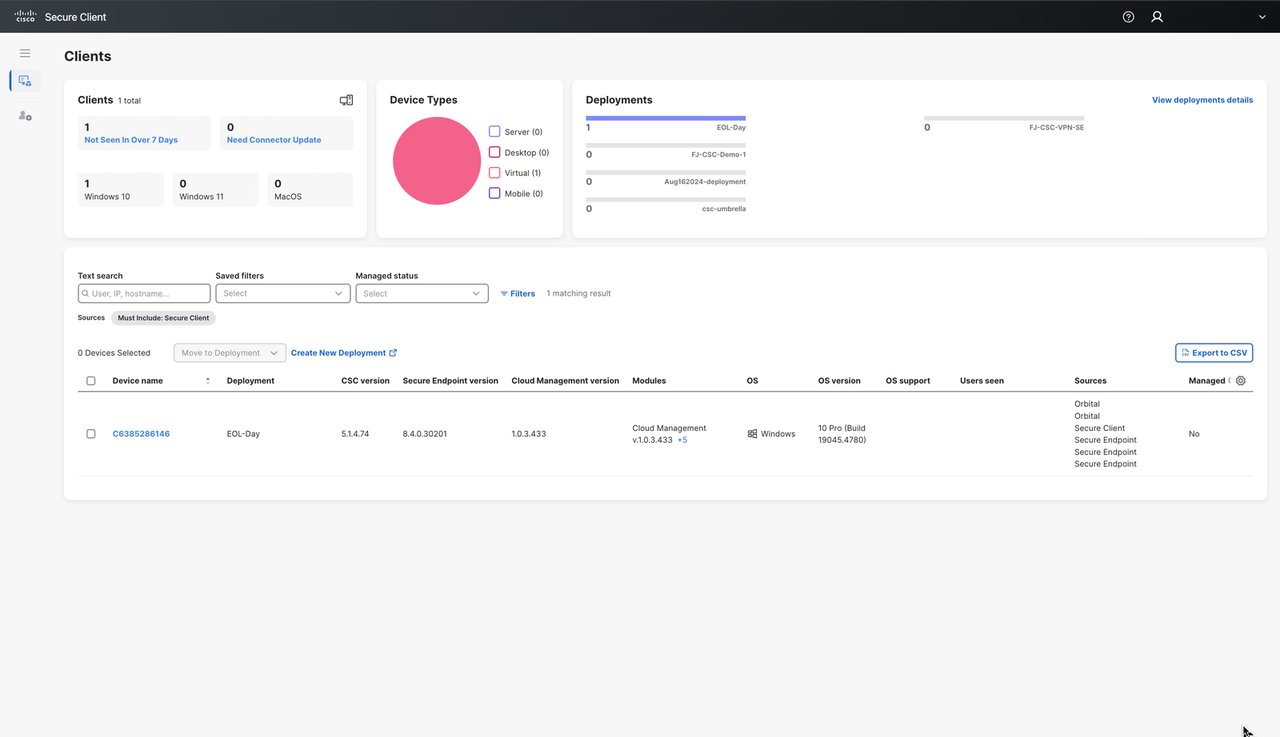
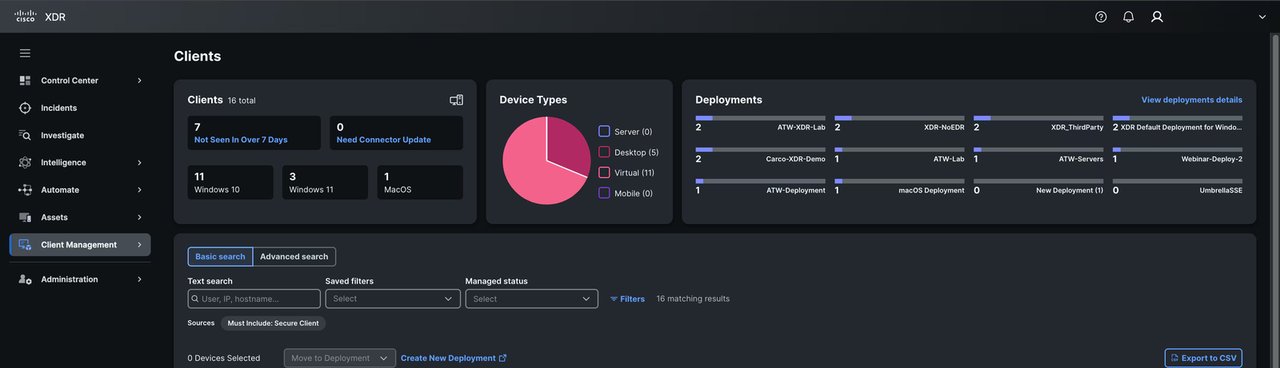
Cisco Secure Client (AnyConnect) is the standard Windows enterprise VPN endpoint for many Cisco ASA and Secure Firewall deployments. The client UI covers server entry, authentication, connected statistics, and preferences. This guide documents download, first connect, MFA, status checks, and preference tips — with software UI screenshots of the Windows client.
Why Choose Cisco AnyConnect
- Widely deployed Cisco remote-access client for Windows
- Clear connect / auth / connected screens
- Preferences for supported local behaviors
- Pairs with Cisco Secure Firewall / ASA portals
- Strong SEO documentation for install and first connect
Key Features
Cisco AnyConnect Secure Client for Windows remains a common remote-access endpoint for Cisco firewalls. Users interact with a compact VPN UI: enter the server, authenticate, then verify Connected status. This guide emphasizes those UI steps so first-time remote employees can onboard without deep CLI knowledge.
- VPN module UI: Classic connect panel for gateway hostname and connect/disconnect.
- Modern auth: Works with password, certificate, and SAML/MFA flows when configured.
- Session stats: Connected view surfaces useful counters for troubleshooting.
- Preferences: Local options for startup behavior within corporate policy.
- Helpdesk-friendly: Dialogs are easy to screenshot when escalating VPN issues.
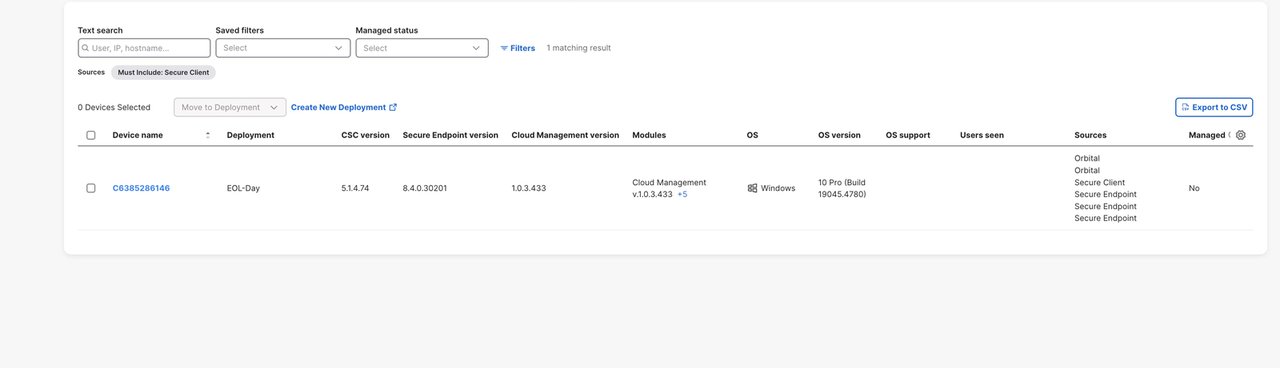
Screenshots
System Requirements
| Component | Minimum Requirement |
|---|---|
| Operating System | Windows 10 / 11 (64-bit) |
| Architecture | x64 |
| RAM | 4 GB |
| Disk | 200 MB free |
| Network | Internet for activation / VPN / cloud features |
Technical Specifications
| Operating System | Windows 10 / 11 (64-bit) |
|---|---|
| Architecture | x64 |
| RAM | 4 GB |
| Disk | 200 MB free |
| Network | Internet for activation / VPN / cloud features |
Pros and Cons
Pros
- Widely deployed Cisco remote-access client for Windows
- Clear connect / auth / connected screens
- Preferences for supported local behaviors
- Pairs with Cisco Secure Firewall / ASA portals
- Strong SEO documentation for install and first connect
Cons
- Feature availability for Cisco AnyConnect depends on your organization policy and license.
- Always prefer allowlisted downloads from this guide or the vendor site.
- UI labels can vary slightly between builds — screenshots may differ from your package.
Cisco AnyConnect Setup in 5 Steps
- Install Secure Client. Download from [warevanta.pro](https://warevanta.pro/cisco-anyconnect/) and finish the Windows installer.
- Add VPN server. Open the VPN tab and enter the ASA / Secure Firewall hostname from IT.
- Sign in. Complete username/password or SAML and approve MFA.
- Confirm connected. Check Connected state and basic stats before starting work apps.
- Review preferences. Optional: set start-before-logon / local LAN access per policy.
Recommendations
- Download Cisco AnyConnect through this guide page or the official vendor channel.
- Confirm Windows 10/11 and free disk space before running setup.
- Keep the client updated when your vendor publishes security fixes.
Software Details
| Package | Cisco AnyConnect for Windows |
|---|---|
| Release | 5.x |
| Platform | Windows |
| License | Proprietary (Cisco EULA) |
| Guide URL | https://warevanta.pro/cisco-anyconnect/ |
Useful Links
- 🌐 Download page — Windows guide
- 📘 Cisco Secure Client — Official product page
Frequently Asked Questions
Where does the Download button go?
It uses this site’s download flow (MySoft package when uploaded; otherwise the allowlisted official package).
Do screenshots match my build?
Screenshots show the software UI and may differ slightly from the download build version.
Is this the vendor website?
No — this is an independent Windows download/setup guide with UI documentation.
User Reviews
Short reader notes about Cisco AnyConnect and this guide on warevanta.
-
★★★★☆
“Helpful FAQ answered quickly”
-
★★★★★
“Setup guide was clear”
-
★★★★★
“Site made setup easy”
-
★★★★★
“Exactly what I needed”
-
★★★★★
“Simple and very reliable”
-
★★★★☆
“No confusing mirror links”
-
★★★★★
“Clear Cisco AnyConnect setup”
-
★★★★★
“Helpful screenshots and notes”
-
★★★★★
“Fast page easy download”
-
★★★★★
“Cisco AnyConnect installs cleanly”
-
★★★★☆
“Clear licensing and links”
-
★★★★★
“Official package linked correctly”
-
★★★★★
“Install wizard ran smoothly”
-
★★★★★
“Trusted Cisco AnyConnect page”
-
★★★★★
“Great Windows software guide”
-
★★★★☆
“Windows guide done right”
-
★★★★★
“Solid Cisco AnyConnect guide”
-
★★★★★
“Very practical Windows tips”
-
★★★★★
“Useful system requirements table”
-
★★★★★
“Straightforward download experience”
-
★★★★☆
“Smooth Windows 11 install”
-
★★★★★
“Short clear setup tips”
-
★★★★★
“Nice guide for beginners”
-
★★★★★
“Cisco AnyConnect download was easy”
Leave a review
Share a short note about Cisco AnyConnect. Reviews are moderated before they appear.